This is the fourth and final post in a series based on a Colligo whitepaper called “Developing an Effective Email Management Solution in SharePoint”. If you’d like to read the full whitepaper or view the associated webinar with special guest speaker, Kathy Hughes, Microsoft MVP, you can get them here.
In the third post we outlined some of the tradeoffs that need to be made when developing an email management solution in SharePoint, then explored the capabilities of the out-of-the-box solutions. In this post we will take a closer look at our product – Colligo Contributor Add-In for Outlook. This is not meant to be an advertorial, but to provide a bit more detail on why we incorporated certain features into the product.
Colligo Contributor Add-In integrates many SharePoint elements into the Outlook interface, including document libraries, lists, metadata, views, and content types. It also includes special support for Outlook emails (discussed later). It’s a small .NET application that’s installed either by the user or, in an enterprise deployment, by IT using a silent install. There are a number of configuration options available that can be applied on the .msi during installation or updated using a login script. The Contributor Add-In does not require server installations or configuration other than conventional SharePoint (MOSS or WSS).

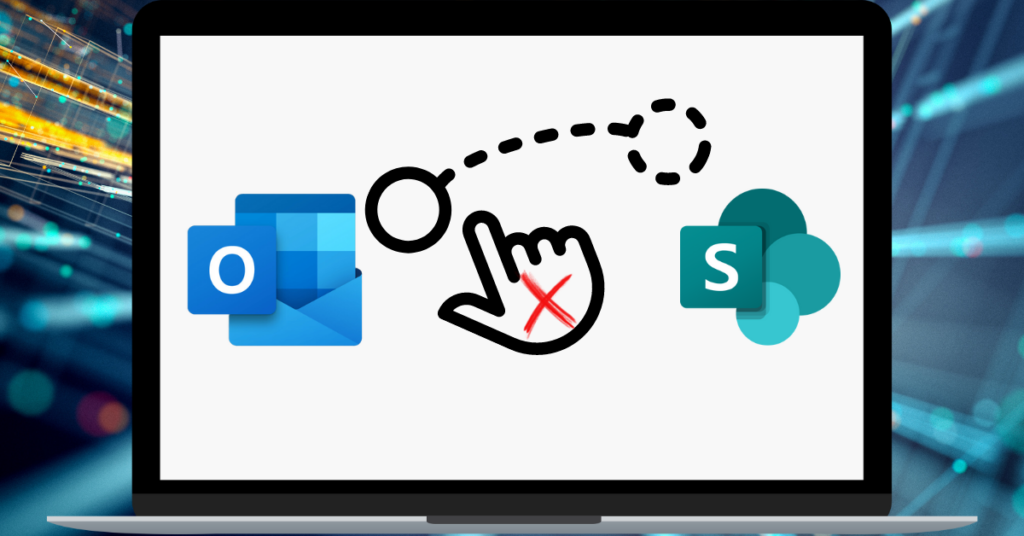
With Contributor Add-In, files and emails can be dragged and dropped into SharePoint document libraries that are accessible through the Outlook folder tree. Emails can also be moved or copied into SharePoint automatically using Outlook rules. Depending on the sync configuration and whether users are connected to the network, files and emails are immediately uploaded to the server or cached for automatic synchronization the next time users are online.

SharePoint libraries and lists are added to Outlook using the “Connect to Outlook” button that is automatically installed on the Internet Explorer toolbar. This enables users to create a SharePoint folder in Outlook in a self-serve fashion with no IT administration required. It reduces the hassle for both users and IT compared to Exchange 2007 Managed Folders with auto-copy as discussed in a previous post. Optionally, IT administrators can push out a configuration file to the client that automatically links a set of document libraries and folders to Outlook without user intervention. This file can also be used to manage a number of configuration options, including default metadata for individual folders (see discussion of version 3.1 launching in the last week of June 2008).
Colligo Contributor Add-In can synchronize many SharePoint elements, and has capabilities to handle emails and attachments. When an email is dragged from the inbox or other Outlook folder into an email library, an event handler on the client extracts the message fields and automatically populates the corresponding metadata fields before the file is stored in the document library. Users can also set the content type and add custom metadata at that time, or later (from within Outlook), for further classification. The email, attachments, and metadata are immediately uploaded to SharePoint as a .msg file with an automatically generated unique name.
Attachments can also be dragged and dropped into document libraries. Users can be optionally prompted to add custom metadata to classify attachments. Files stored in SharePoint document libraries that are cached in Outlook can be dragged onto emails as attachments. This highlights one of the advantages of Colligo Contributor, namely that users can set content type and metadata at the time they move content to SharePoint. The metadata editor shown below pops up when users drag-and-drop emails or attachments into document libraries through Contributor folders. With the Contributor Add-In, users do not need to go to the browser afterwards to set required metadata or change the content type – they always stay in the Outlook interface.

Metadata support is further enhanced in Contributor Version 3.1 (scheduled for release at the end of June 2008). Folder-level metadata support fills in a gap in SharePoint by enabling users, or IT through the configuration file mentioned earlier, to set default metadata properties at the folder- or list-level. Metadata prompting can then be turned off so users need only drop content into a folder to automatically upload and set default metadata. Also in version 3.1 is Office 2007 metadata support which enables users to set metadata through the “Document Properties” pane in Office 2007 as an alternative to the Contributor “New Item” dialog.
A standard SharePoint document library that has been setup with a metadata (columns) that represent email message fields (i.e. To, From, Subject, etc.) is all that’s required on the SharePoint side. An optional .xml file on the client can be used to configure the mapping of email properties to metadata fields. Email libraries with these characteristics can be setup by site administrators, designers, or end users through the use of content types that are available in SharePoint 2007. Content types can also provide a way to setup document retention policies, which can be used to determine when emails are to be deleted or routed for archival. There’s a good article on the Colligo Support site that describes how to setup document libraries and map metadata.
The Colligo Contributor Add-In can provide users access to SharePoint content and views whether they are on or off the network because it has the option to cache SharePoint offline. Local caching improves user productivity with instant access to content when working offline (e.g. when travelling) or over slow connections. Of course, for users who only work online, or for large email libraries, caching is neither required nor practical so the Add-In provides the option to cache on a library-by-library basis. Note that drag-and-drop and automatic metadata extraction for this library work in the same way as in the cached version. For office workers who will never require offline caching, Contributor Add-In is available in an online-only configurations.
For a closer look at the Colligo Contributor Add-In, you may want to view the Contributor (Outlook AddIn) Quick Overview screencast on the Colligo support site.